
Normal business operations can be brought to a sudden halt due to a server failure. If something happens to their hard drive, accidentally deleted files or ransomware attacks, important files can be inaccessible in a matter of minutes. For any business that uses servers on a daily basis, it is important to have a reliable backup system in place as part of your disaster recovery plan. That is why it’s more important than most business owners realize that they get the right server backup tools, before it is too late.
Server backup software has come a long way, including automated backup, quicker recovery, ransomware protection, and backup verification. These features are especially beneficial for businesses that manage physical servers, virtual machines or cloud-based workloads. The best choices today have quick recovery time, ransomware-encrypted storage and automated testing, which means you can always be sure that your backup is going to work when you need it. From having one physical server in a back office to dozens, hundreds or thousands of virtual machines across client sites, there is a tool designed for you.
In this guide, we examine the top 10 server backup tools for 2026, dissect their true pricing structure, compare their features against each other and assist you in determining which is best for your setup. Let’s compare the features, pricing, deployment options, and the kinds of businesses each of these tools can serve below.
Also Read – Best AI Pricing Optimization Tools
Why Server Backup Software Matters (The Real Cost of Downtime)
- Downtime can cost businesses a lot of money, depending on the size and scope of the business. A brief power lapse may cost significant money when employees have to deal with the loss of vital systems or customer information.
- Backup repositories can also be a target for ransomware, and businesses should be protected from it on their backup copies as well.
- There’s no backup available when a single piece of hardware fails, and years’ worth of customer records, invoices or project files could be lost.
- In the medical, financial or legal sectors, compliance regulations have standards that mandate that there be proven and tested back ups – not simply “we have a copy somewhere.
- Manual backup procedures are more likely to be overlooked or done wrong. Automated schedules lessen the workload associated with a person remembering to perform a backup.
- A backup won’t help if the data can’t be recovered if it is needed.
- Longer recovery periods also can cause inconvenience for customers and impact a company’s business continuity.
What to Look for in Server Backup Software
Recovery Speed & Flexibility (RTO/RPO Explained)
RTO – Recovery Time Objective, the time to get your server up and running after it has crashed. RPO is the amount of data you allow, in time, to be lost, known as Recovery Point Objective. If your RPO is 1 hour, you won’t be able to lose more than 1 hour of work between the last backup point.
With good server backup software, you’ll have both short RTO and short RPO without having to sacrifice one for the other. Seek out instant VM recovery, boot-from-backup and granular file-level recovery. If it can only restore the whole system you won’t be able to save a lot of time as you will have to wait for hours to get one folder back.
Ransomware Protection & Immutable Storage
Immutable Storage is a storage type that prevents anyone—even an administrator—from modifying or deleting a backup for a defined time. This is one of the largest lines of defence against ransomware as attackers can’t encrypt or destroy backups they can’t access. Otherwise, if a hacker breaches your network, he can just delete your backups, as well as your live data.
Today, many modern server backup solutions now include the ability to make a backup immutable either in their cloud repository, or on local storage, following the “3-2-1-1-0” rule, which is three copies, on two media, one offsite, one immutable and zero errors after verification. When a vendor is not able to consistently answer the question of their ransomware protection plan, that should be a red flag.
Backup Verification & Automated Testing
Backing up is just the first step. It is also important for businesses to ensure that the backup is complete and that restoration can be done successfully. Automated testing goes even further and routinely takes a copy of the backup and tests it in an isolated environment, without anyone touching it.
Others call this SureBackup and it is the feature provided by Veeam. This feature alone can save a company from a “surprise” if the backups fail to meet specifications during a real disaster as you only discover that the backups are broken when you test them, and not during an emergency when it’s too late to discover and repair.
Deployment Model: On-Prem vs. Cloud vs. Hybrid
| Deployment Type | How It Works | Best For | Watch Out For |
| On-Premises | Backup software and storage sit inside your own building or data center | Businesses with strict data control needs, low internet bandwidth, or compliance rules | Hardware costs, no protection if the whole site is damaged |
| Cloud | Backups are sent over the internet to a provider’s remote servers | Remote teams, businesses without IT staff, companies wanting offsite protection without buying hardware | Ongoing storage costs, restore speed depends on internet connection |
| Hybrid | Combines a local backup copy for fast recovery with a cloud copy for offsite protection | Most mid-size and growing businesses that want speed and safety together | More moving parts to manage and monitor |
Which Type of Buyer Are You? [Quick Decision Framework]
Small Business / Single-Server Setup
- Find a solution that is easy to set up and has minimal requirements of the IT team
- Choose a tool that has a low cost or free tier, as a beginning point.
- Focus on cloud backup – so that you don’t need additional hardware.
- Pick a tool that has phone/Chat support, as you are probably not a member of IT staff.
MSP Managing Multiple Client Environments
- Search for multi-tenant dashboards to manage all client backups, from one screen.
- Use tools that have white labeling reporting and deliver branded backup reports to clients.
- Be sure to use per-workload or per-GB pricing to scale along with clients
- Select vendors that have excellent partner and reseller initiatives.
Enterprise with Dedicated IT/Backup Team
- Seek rich API access and automations for the big and complex environment.
- Select tools that have granular access based on roles for large teams.
- Ensure the highest levels of disaster recovery orchestration and compliance reporting.
- Select vendors that have an account manager and provide SLAs.
10 Best Server Backup Tools in 2026 [Comparison Table + Individual Reviews]
| Tool | Best For | Deployment | Bare Metal Recovery | Immutable Storage | Starting Price | Free Trial |
| Veeam Backup & Replication | Enterprise / Virtual Environments | Hybrid | Y | Y | $250/workload/year | Y |
| Acronis Cyber Protect | SMB / Ransomware | Hybrid | Y | Y | $68/workload/year | Y |
| Commvault Complete Backup & Recovery | Enterprise | Hybrid | Y | Y | Custom quote | Y |
| Veritas NetBackup | Enterprise | Hybrid/Appliance | Y | Y | Custom quote | Y |
| Rubrik | Enterprise / Ransomware | Cloud/Appliance | Y | Y | Custom quote | Y |
| Nakivo Backup & Replication | SMB / MSP | Hybrid | Y | Y | $25/workload/year | Y |
| Unitrends Backup | MSP / SMB | Hybrid/Appliance | Y | Y | Custom quote | Y |
| Arcserve UDP | Enterprise / MSP | Hybrid/Appliance | Y | Y | Custom quote | Y |
| MSP360 Managed Backup | MSP | Cloud/Hybrid | Y | Y | Custom quote | Y |
| Druva | Cloud-first / Enterprise | Cloud | N | Y | Custom quote | Y |
10 Best Server Backup Tools in 2026
1. Veeam Backup & Replication
Veeam is a well-known server backup tool and a good reason for being well-known is that it is one of the largest. It’s designed with virtual machines in mind, and it is useful with VMware and Hyper-V environments, but is also applicable to physical servers, cloud workloads and Microsoft 365. It has a long history, and a large library of storage vendor integrations, which makes it a trusted choice for large companies and IT teams.
The best thing about Veeam is a feature called Instant VM Recovery that allows you to run a failed virtual machine from the backup file before the backup is properly repaired. It also has application-aware processing capabilities, which means it knows about databases and Active Directory so well that you don’t have to worry about copying raw files, you can restore them right.
Key Features:
- Instant VM Recovery
- SureBackup testing
- Immutable repositories
- Microsoft 365 backup
Pros:
- Fast VM recovery
- Huge integration list
- Strong community support
Cons:
- Can be pricey
- Steep learning curve
- Complex initial setup
Pricing: $250 per workload/year
Best For: Enterprises and virtual environments
Website: veeam.com
2. Acronis Cyber Protect
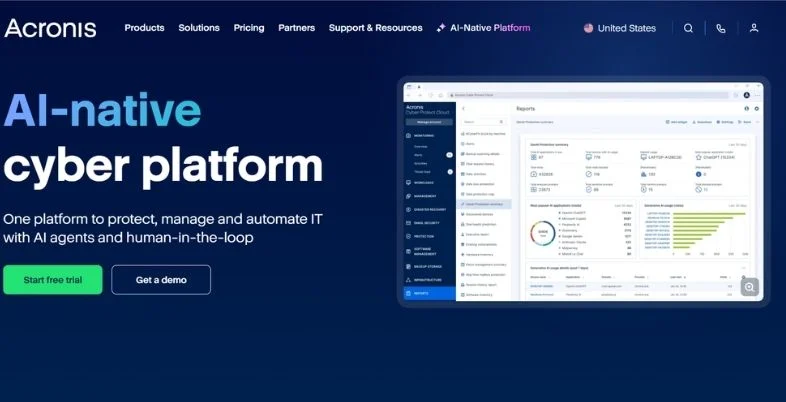
The approach Acronis takes is different – it bundles backup and cybersecurity together in one package. It not only copies your server information, but it has antimalware, antivirus and patch management integrated into it as well. This is a great option for smaller companies that don’t wish to purchase and install separate security and backup software.
The Acronis Cyber Protect includes full image backups, which enable you to backup the entire server, operating system, and everything else. And in case of a disaster, you can restore everything at once. It also provides bare metal recovery, and will allow you to provision a server onto freshly installed hardware without a re-install of the operating system.
Key Features:
- Built-in antivirus
- Bare-metal recovery
- Ransomware rollback
- Patch management
Pros:
- All-in-one security
- Affordable entry price
- Easy to set up
Cons:
- Can feel bloated
- Support response varies
- Cloud storage separate
Pricing: $68 per workload/year
Best For: Small businesses wanting backup plus security
Website: acronis.com
3. Commvault Complete Backup & Recovery
Not only does Commvault back up data, it is designed for organizations that must manage data throughout its lifecycle. Everything from backup and archiving, to disaster recovery and even eDiscovery for lawsuits, in one place. As a result, it is popular with larger companies that have complex compliance and reporting requirements.
One of Commvault’s greatest assets is that its backup system is policy-based, meaning that backup rules can be established once and then automatically enforced on all of its servers, physical or virtual, without having to configure them individually. It also provides additional robust restore testing functionality to allow IT teams to demonstrate their recovery plans work during audits.
Key Features:
- Policy-based automation
- Cross-platform coverage
- eDiscovery tools
- Deduplication technology
Pros:
- Very comprehensive platform
- Strong compliance reporting
- Scales to any size
Cons:
- Expensive for smaller teams
- Complex configuration
- Requires trained staff
Pricing: Custom quote
Best For: Large enterprises with compliance needs
Website: commvault.com
4. Veritas NetBackup

As one of the oldest backup solutions, Veritas NetBackup is a favourite solution for large enterprises with thousands of servers spread across data centres all over the world. It is all about a governed policy system that links backup jobs, restore browsing and reporting in a single central console.
Banks, hospitals and government agencies trust NetBackup because it doesn’t break when used on a large scale. It works with an extensive number of platforms and storage targets, and the reporting capabilities help IT departments with extensive environments to keep an eye on all backup jobs.
Key Features:
- Centralized policy console
- Massive scale support
- Wide platform coverage
- Detailed audit reporting
Pros:
- Handles huge environments
- Long-proven reliability
- Strong vendor support
Cons:
- Costly licensing
- Not for small teams
- Setup takes time
Pricing: Custom quote
Best For: Large-scale enterprise data centers
Website: veritas.com
5. Rubrik
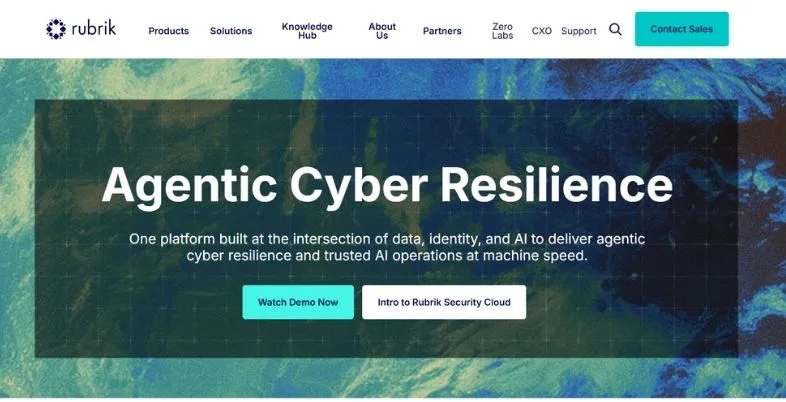
It stands to reason that since the company’s goal is to make life simple, Rubrik was developed to be that and to offer robust ransomware protection, with an appliance-like design that combines hardware and software, rather than having a completely physical-absence cloud version for those who don’t want to deal with physical boxes at all. It puts a strong emphasis on predicting and quickening recovery in even the most severe cyber attack.
The policy engine is part of Rubrik’s design and is instead linked to how backups are handled; ransomware protection is not a bolt-on, it’s part of the design. IT teams appreciate the modern, intuitive interface of Rubrik, which is available in contrast to other server backup programs on this list that are more complex.
Key Features:
- Immutable by design
- API-driven automation
- Fast search and restore
- Multi-workload support
Pros:
- Clean, modern interface
- Strong ransomware focus
- Reliable performance
Cons:
- Premium pricing
- Appliance cost adds up
- Custom quotes only
Pricing: Custom quote
Best For: Enterprises prioritizing ransomware defense
Website: rubrik.com
6. Nakivo Backup & Replication
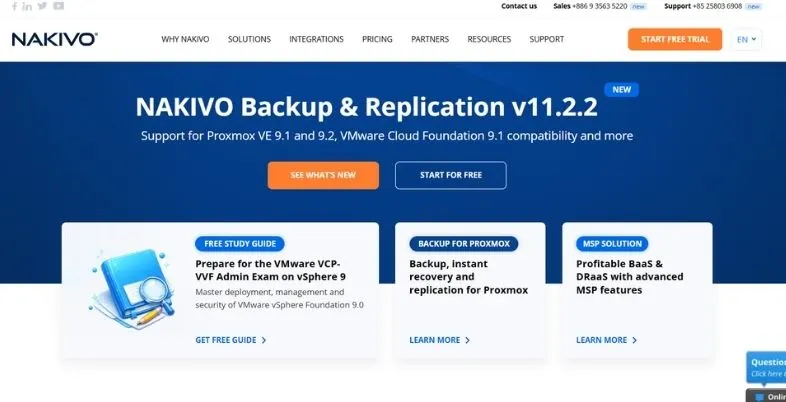
Nakivo has established a reputation as a powerful enterprise solution for small and medium businesses, which is available at a fraction of the price. It secures virtual machines, cloud workloads, Microsoft 365 accounts and physical servers from one relatively easy to use interface.
More than 16,000 companies are already using Nakivo, and numerous users do emphasize its simplicity in comparison to other more comprehensive tools. It further has anti ransomware capabilities and instant recovery modes, which means smaller companies don’t have to compromise on protection by virtue of working with a smaller budget.
Key Features:
- Instant VM recovery
- Anti-ransomware protection
- Flexible per-workload pricing
- Microsoft 365 backup
Pros:
- Very affordable pricing
- Easy to learn
- Great for SMBs
Cons:
- Fewer enterprise integrations
- Limited DR features
- Smaller support team
Pricing: $25 per workload/year
Best For: Small to mid-size businesses and MSPs
Website: nakivo.com
7. Unitrends Backup
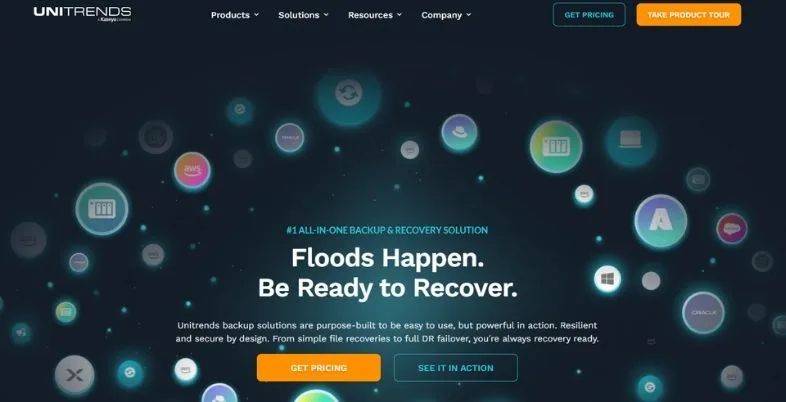
Unitrends’ managed service provider market emphasis provides MSPs with a single dashboard for the management of backup for numerous different client environments. It provides software and pre-built backup appliances, which enables businesses to select the one that best suits their setup.
It’s a blend of hardware and software that can be built into turnkey appliances to cut down on setup time, and excellent automation that lets MSPs provide backup services to customers without having to have a massive technical staff. Instant recovery capabilities enable a virtual machine of a failed server to be launched rapidly, and the actual repair takes place in the background.
Key Features:
- Pre-built appliances
- MSP-focused dashboards
- Instant recovery
- Ransomware detection
Pros:
- Strong MSP tools
- Appliance simplifies setup
- Good client reporting
Cons:
- Appliance cost upfront
- Less flexible than cloud-only
- Interface feels dated
Pricing:$2/month per device
Best For: MSPs managing multiple clients
Website: unitrends.com
8. Arcserve UDP
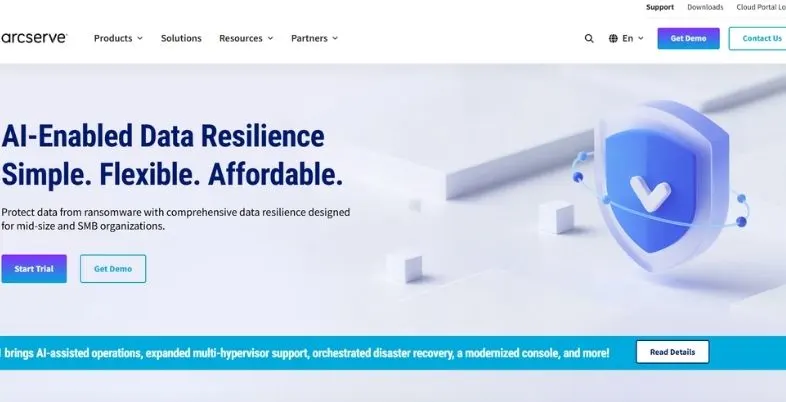
Designed to protect virtually any workload with image-based technology, Arcserve Unified Data Protection (UDP) takes an exact snapshot of a server instead of just individual files. It can be used in a physical, virtual, and cloud environment, and enables businesses to enable or disable features as required.
Users appreciate Arcserve for offering numerous data protection features in a single product—such as data backup and disaster recovery and cloud storage—which otherwise would require businesses to purchase individual solutions. Licensing is on a sockets, capacity or universal (flexibility) basis, depending on the infrastructure of a company.
Key Features:
- Image-based backup
- Flexible licensing model
- Built-in DR options
- Heterogeneous workload support
Pros:
- All-in-one platform
- Flexible deployment options
- Good for mixed environments
Cons:
- Pricing not transparent
- Setup needs expertise
- Interface can confuse
Pricing: Custom quote
Best For: Businesses with mixed physical and virtual workloads
Website: arcserve.com
9. MSP360 Managed Backup
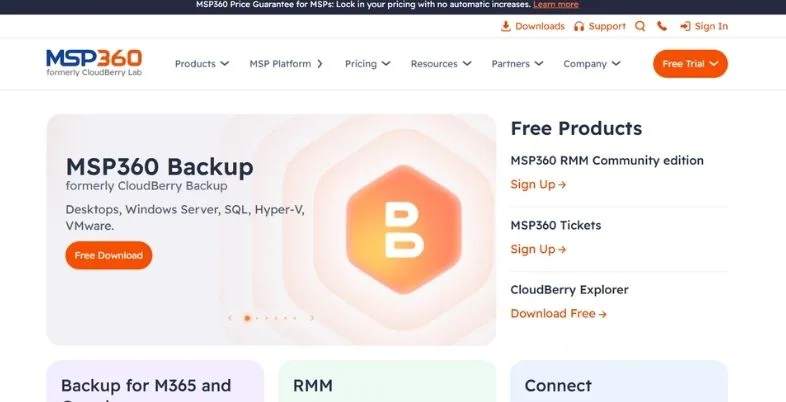
Designed with managed service providers in mind, MSP360 allows for the service of backup services for numerous clients without having to be tied to a single cloud storage vendor. The fact that the MSP can opt for Amazon S3, Wasabi, Backblaze or any other storage solution you have is a huge selling point as they are not forced to choose just one option.
The platform features a centralized console for managing servers, workstations, databases and Microsoft 365 backup. Reviewers often comment on how it aids MSPs not only in reducing maintenance time but also helps maintain low backup expenses, enabling them to remain profitable in reselling the backup services to clients.
Key Features:
- No storage vendor lock-in
- Central MSP console
- Database backup support
- Microsoft 365 protection
Pros:
- Storage flexibility
- Cost-effective for MSPs
- Reliable and scalable
Cons:
- Interface less polished
- Learning curve for new users
- Fewer big-enterprise features
Pricing: Custom quote based on usage
Best For: MSPs wanting storage flexibility
Website: msp360.com
10. Druva
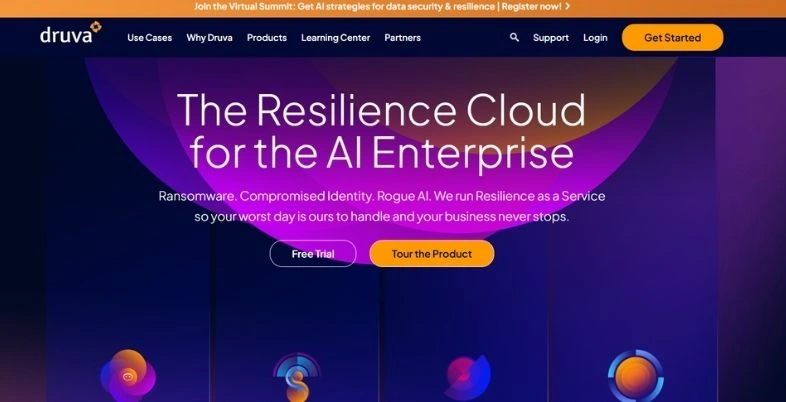
The entire solution is a cloud-first solution, where there is no on-premises hardware or software to manage, everything is operated through Druva’s managed cloud platform. This attracts companies that are looking to avoid the costs of owning backup servers, and only wish to have their data protected, but with no additional infrastructure.
The approach Druva takes is to install agent-based protection on the servers and then have the servers upload information to a central managed repository. Delivered as a service, updates, patching, and scaling occur on Druva’s side, giving internal IT teams a significant lift in the maintenance department.
Key Features:
- Fully cloud-native platform
- Agent-based server protection
- Centralized managed console
- Built-in encryption
Pros:
- No hardware needed
- Easy to scale
- Strong data security
Cons:
- No bare-metal recovery
- Ongoing cloud costs
- Less control over storage
Pricing: Custom quote
Best For: Cloud-first businesses avoiding hardware
Website: druva.com
On-Prem vs. Cloud vs. Hybrid Server Backup: Which Should You Choose?
| Factor | On-Premises | Cloud | Hybrid |
| Upfront Cost | High (hardware needed) | Low (subscription-based) | Medium |
| Ongoing Cost | Maintenance and power | Monthly storage fees | Both, but often balanced |
| Recovery Speed | Very fast (local) | Depends on internet speed | Fast, since local copy exists |
| Disaster Protection | Weak if site is damaged | Strong, data is offsite | Strong, best of both |
| Best For | Regulated industries, large data centers | Remote teams, small businesses | Most growing businesses |
How Much Does Server Backup Software Cost?
- Small business and entry level tools, such as Nakivo and Acronis are typically beginning to be available for around $25 to $70 per workload per year.
- Slightly more automated tools that offer some reporting – such as tools in the Mid-range tier in Veeam – are typically priced between $350 per workload per year.
- Typically, enterprise-level platforms such as Commvault, Veritas NetBackup and Rubrik would necessitate a custom quote, because pricing varies greatly based on the number of workloads and data volume.
- The pricing for cloud storage typically isn’t tied to the backup software license itself, so be sure to consider that in your total budget.
- There are free options available – for example, Veeam’s Community Edition provides up to 10 workloads for free.
- Tools targeted at MSPs, such as MSP360 and Unitrends, typically charge per client or per device, meaning that costs can rise with the number of clients.
- Be cautious of any hidden fees, such as annual price increases, keeping support, and storage limits.
Common Server Backup Mistakes to Avoid
- Doing “just in case” testing on a backup only when it is needed.
- Keeping all copies in the same building as the server.
- Assuming that ransomware attacks will never hit your business is an error that has proven to be fatal for many.Perhaps the biggest mistake many companies make is believing that ransomware can’t happen to them.
- Creating backups of only files and omitting database, application and system settings.
- Having back-up schedules and never checking them again as the business expands
- Not paying attention to “backup failure” alerts since these seem to appear too frequently to investigate further
- Purchasing a tool because of the cost instead of the recovery rate.
- Failing to record the actual process of recovery to be followed in case of an emergency by any team member.
Conclusion: Our Top Pick by Business Size
Nakivo or Acronis Cyber Protect are best suited for small businesses that have only one or two servers. Both are highly effective, won’t break the bank and don’t need a special IT person to maintain them.
Managed service providers with several clients will find that Unitrends and MSP360 are the two services that offer the multi-tenant dashboards and pricing options to scale with the number of clients. These tools are designed specifically to ease an MSP’s life, rather than protecting one server.
For large companies with their own IT and backup teams, the solutions of Veeam, Commvault and Rubrik are worthy of consideration based on their specific requirements. Veeam has the best virtual environment support, Commvault has the best compliance and lifecycle management, and Rubrik has the best ransomware defense when it is the most important. Regardless of whichever one you choose, the idea is always the same: ensure that your data will withstand the next step.
FAQs
What is the best back up software for a Windows server?
Acronis Cyber Protect and Veeam Backup & Replication are both great solutions for Windows servers, providing full image backups and bare-metal recovery to ensure a Windows machine can be restored quickly in case of total failure.
Is Veeam better than Acronis for server backup?
In most cases, Veeam will be best for larger virtual environments running VMware or Hyper-V, while Acronis is more suited to smaller businesses that are looking for a single backup and cybersecurity suite for a lower price.
What is the difference between RTO and RPO?
RTO is the time it takes to restore your server after a failure, RPO is the amount of data you can tolerate to be lost, which is defined by the time between points of your last backup.
What is the price of enterprise server back-up software?
Enterprise pricing, such as Commvault, Veritas NetBackup and Rubrik, is nearly always a custom quote as it is dependent on the volume of workloads, amount of data, and level of support that a company requires.
What does bare metal recovery mean?
Bare metal recovery enables you to install a full server, operating system included, on a fresh or different server, without requiring to install everything again manually first.
Are there any differences in backup software requirements between MSPs and one business?
Yes, MSPs require a multi-tenanted dashboard, client reporting and flexible per-workload pricing because they are dealing with backups in multiple client environments simultaneously.
What does immutable mean when it comes to backup storage and why is it important to ransomware?
When data is stored as immutable, users are prevented from modifying or deleting their backups, including by an administrator, even for a specific period, to ensure that ransomware attackers do not manage to delete your backups along with the data you are storing.
Are there any freely available (open-source) backup tools that I can use for my server?
Yes, there are some free tools and solutions, such as Veeam’s Community Edition, which provides protection of up to 10 workloads for free, but free and open-source solutions often lack the advanced automation and support options provided by paid server backup solutions.
What is the frequency of backup for the server?
Most businesses conduct full backups weekly and incremental backups every day or even hourly, but the best frequency depends on how much data loss your business can withstand.
What does the term backup verification mean and why is it important?
Backup verification checks for the integrity of a backup file to ensure that it is not corrupted, and can be restored if it is needed, which can be very important as an untested backup may be corrupted just when you need it.