
Consider your company information as crucial family photos. What do you do when the computer crashes or is hacked? Your data is lost, your customers can’t contact you, and your business comes to a halt. This is where recovery tools come to the rescue. Tools will be more critical in 2026 than ever. A variety of issues can arise every day for thousands of businesses, ranging from power outages, cyberattacks, server failures, and natural disasters. In such cases, you have to get back on-line as quickly as possible. Tools will assist you in saving your data, securing your systems and getting your business up and running quickly.
The good news? These tools aren’t complicated to use and do not require a techno whiz. Modern Disaster Recovery Tools are very easy to use, cost-effective, and usable by businesses of all sizes, including small and big shops, and even companies with 5,000 workers.
This article will help you with all the information you need to know about the best tools in 2026. We’ll discuss their functions, present you with the top 10 best choices, and assist you in choosing the most suitable option for your business.
What Are Disaster Recovery Tools?
Recovery Tools are software applications that make copies of important data and help you get up again quickly after a disaster. Consider them an insurance plan for your electronic life. tools are designed to do the following:
- Save your data: They automatically make copies of your files, emails, databases and applications.
- Secure backup storage: Your backups are kept in secure vaults or cloud storage.
- Get online again fast: Tools to restore everything quickly when disaster strikes
- They help prevent numerous issues: They safeguard against hacker attacks, hardware failures, accidental deletions and natural disasters.
With tools, a disaster could only cause weeks or months of lost time without them. These could send you back to the hours or minutes.
Every business is different and so are the tools that are used. There are simple ones and complex ones (for large companies). The perfect Disaster Recovery Tools have three features: quick, reliable and cheap.
RTO and RPO in Plain English
These two terms sound complicated, but they’re actually simple:
RTO (Recovery Time Objective) = How fast do you need to be back online?
- Example: If your business says “We need to be back online within 2 hours,” your RTO is 2 hours
- Faster RTO costs more money
- You need RTO because every minute offline costs you money and customers
RPO (Recovery Point Objective) = How much data can you afford to lose?
- Example: If you can lose up to 1 hour of work, your RPO is 1 hour
- This means your backups must happen at least every hour
- Tighter RPO (like 15 minutes) requires more frequent backups and costs more
The difference in real life:
- Your Disaster Recovery Tools crashed at 3:00 PM
- Your last backup was at 2:30 PM (your RPO)
- You lost 30 minutes of work (between 2:30 and 3:00)
- Your team gets everything back by 4:00 PM (your RTO is 1 hour)
Most small businesses want an RTO of 4-8 hours and an RPO of 1 hour. Big companies need RTO of minutes and RPO of seconds.
Types of Disaster Recovery Tools
1. Cloud-Based Recovery
Cloud based tools back up your data to servers hosted on the Internet by other companies, such as Amazon, Microsoft, or Google. You aren’t the owner of the equipment, you are only a renter of space. These are large companies that safeguard the data for millions of customers and you know your data is safe. It is simplest for small businesses and does not require any setup.
2. Local/On-Premises Recovery
Local Disaster Recovery Tools backup to hard drives or servers in your office. You fully own the equipment and don’t have to pay monthly payments. However, the protection of the equipment is up to you—security, cooling, power backup and theft protection. Suitable for large businesses with IT departments.
3. Hybrid Recovery
Hybrid tools employ both approaches: storing one back up locally (faster to restore) and storing one in the cloud (slower to restore, but safer from disasters). This provides you speed and protection. Two in one and one and a half in one. Ideal for maximum reliability businesses.
4. Managed Service (DRaaS)
DRaaS is short for Disaster Recovery as a Service. Your tools are fully managed by another company. No software or equipment to purchase, only a monthly fee. The company is responsible for updates, testing and monitoring. Best suited to small businesses that do not have an IT team.
5. Replication-Based Recovery
Replication Disaster Recovery Tools continuously replicate your data at another location (on-premises server or cloud). In the event of a disaster, the copy is ready to use. This is the most rapid means of recovery (sometimes as quick as in less than 1 minute). It is expensive and requires additional bandwidth, however.
Category Table: Types of Disaster Recovery Tools
| Type | How It Works | Best For | Watch-Outs |
| Cloud-Based | Data saved on vendor’s internet servers | Small businesses, budget-conscious | Internet must stay reliable |
| Local/On-Premises | Backups stored in your office equipment | Large enterprises, security-focused | Expensive setup, need IT team |
| Hybrid | Mix of local + cloud backups | Medium to large companies | Most expensive option |
| Managed Service (DRaaS) | Vendor manages everything for you | Small companies, busy owners | Less control, vendor dependent |
| Replication-Based | Continuous real-time copying | Mission-critical systems | High bandwidth costs |
Quick Picks by Scenario
- Need to get started? – Carbonite Backup or Acronis Cyber Protect (affordable and simple)
- A small business? – Symantec Disaster Recovery or Veeam Backup & Replication (Balanced)
- Working with several clients? – Kaseya VSA or Datto (MSP ready)
- Super Faster recovery – Zerto or Veeam DR Orchestrator (fast and powerful).
- Pure cloud business? – AWS or Zerto (cloud-native)?
- Need a tight budget? – Carbonite Backup (starting at $6/month)
10 Best Disaster Recovery Tools 2026
1: Acronis Cyber Protect
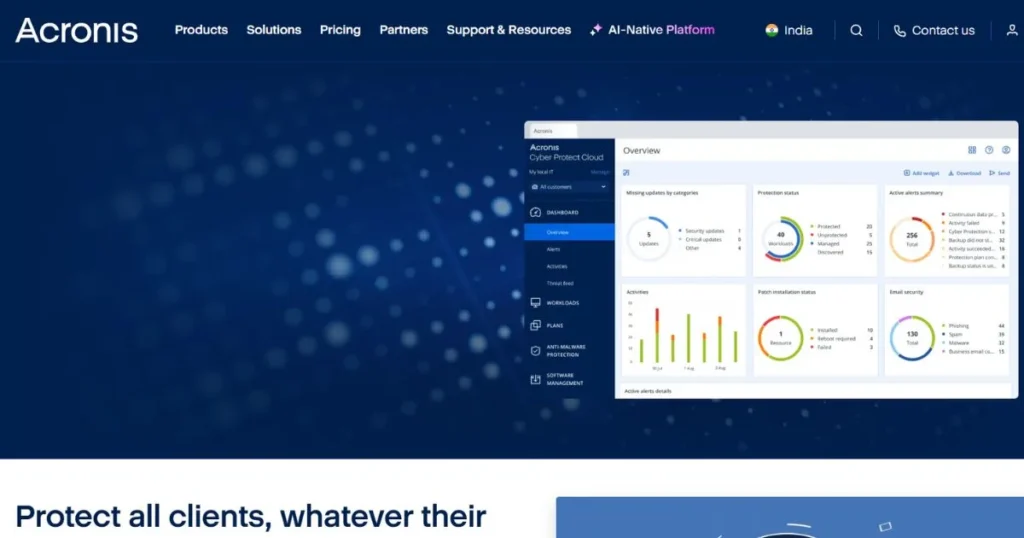
Acronis Cyber Protect is like having a bodyguard for all your data. This software safeguards your computer files, business applications, entire systems and even your company’s cloud storage. It’s automatic which means you don’t have to think about it. Acronis Cyber Protect can restore all your files, from a broken hard drive, a hacker attack or even if you accidentally deleted them. It can be used by businesses of all sizes, from one individual to large companies. Backup can be stored on premises (in your office), in the cloud, or on both. The software also has robust security measures like encryption, so that even if hackers get hold of it, they will not be able to read your data.
Key Features:
- Automatic daily backups (you do nothing)
- Works with cloud, local, and hybrid storage
- Military-grade encryption protects your data
- Fast recovery times keep downtime minimal
- Easy dashboard shows backup status
Pros:
- Excellent security and data protection
- Works for businesses small to huge
- Cloud protection included, no extra cost
Cons:
- Expensive for very small startups
- Advanced settings can confuse beginners
- Occasional software updates cause slowdowns
Pricing: Starts at $49/year for personal use; custom pricing for business
Website Link: https://www.acronis.com/en-us/products/cloud/
2: Veeam Backup & Replication
Veeam Backup & Replication is the favourite of IT professionals who use virtual machines, the computer-within-computer technology that big companies favor. This Disaster Recovery Tools solution specializes in saving copies of entire virtual computers instantly. In case of disaster, it can start your virtual machines in minutes, not hours. Veeam also supports physical computers, cloud systems and hybrid configurations. The software isn’t dumb: it will only store changes since the last backup, which can save storage space and cost of money. Veeam provides comprehensive reporting of everything protected and what’s at risk. They rely on Veeam for being extremely reliable and fast and it is trusted by many Fortune 500 companies.
Key Features:
- Instant recovery of virtual machines
- Works with virtual, physical, and cloud
- Smart incremental backups save space
- Automated disaster recovery testing
- Professional monitoring and reporting
Pros:
- Lightning-fast virtual machine recovery
- Handles massive operations smoothly
- Industry-leading reputation (4.8/5 rating)
Cons:
- High initial cost for small businesses
- Dashboard can be overwhelming for beginners
- Requires skilled IT person to manage
Pricing: Starts at $42 per server annually; custom enterprise pricing
Website Link: https://www.veeam.com/
3: Zerto
Zerto is a tools for businesses that can’t afford any downtime. Zerto is used by hospitals, banks, and shopping sites as it protects data all the time – every second. Regular backups happen every day; however, with Zerto, the data is monitored 24/7, and all changes are immediately copied to a secure location. In case of a system failure, Zerto will get you up and running in minutes, if not seconds. Zerto is available on virtual machines, physical servers and cloud services, making it an ideal solution for hybrid companies. The automatic failover keeps your business up and running even as your technicians repair the broken equipment. Maybe Zerto is a bit costly, but as far as mission-critical businesses are concerned, it’s all worth it.
Key Features:
- Continuous protection (every second)
- Automatic failover to backup system
- Works across virtual, physical, cloud
- Near-zero downtime and data loss
- Detailed analytics show everything
Pros:
- Fastest recovery in the industry
- Minimal or zero data loss
- User-friendly compared to competitors
Cons:
- Very expensive for small companies
- Limited support for non-VMware systems
- Overkill for businesses that can afford downtime
Pricing: Custom pricing (typically $10,000+ annually)
Website Link: https://www.zerto.com/
4: Carbonite Backup
Carbonite Backup is the “starter kit” of tools for small businesses, freelancers and remote workers. Easy: One time install, forget about it and your data is protected each day. You don’t need to purchase costly devices, as all backups will be stored in the secure cloud storage of Carbonite. It’s easy to recover from, log into Carbonite’s website or use their app to get anything you need. Not only that, but the price is also really budget-friendly, beginning at $6 monthly for limitless cloud storage. Carbonite doesn’t have some of the nicer options such as virtual machine recovery or continuous replication, but it’s a great buy for the price. Ideal solution for companies starting to protect their disaster recovery.
Key Features:
- Automated daily backup (zero effort)
- Unlimited cloud storage space
- Simple one-click restore
- Works on computers and mobile phones
- Strong encryption protects privacy
Pros:
- Extremely affordable pricing
- Simple enough for anyone to use
- No confusing technical settings
Cons:
- Limited advanced features
- Large file backups are slow
- Not designed for enterprise use
Pricing: Starts at $6/month; small business plans start at $9/month
Website Link: https://www.carbonite.com/
5: Datto
Datto is the Disaster Recovery Tools solution created for Managed Service Providers (MSPs), who keep the computers and systems of other companies. Datto can be compared to a business insurance, a backup and a recovery solution all in one. It will constantly safeguard your data, and automatically run tests to see if it is possible to recover them. Datto also provides protection against ransomware (hacker attacks in which your data is locked up until you pay the ransomers). Local backup is provided for recovering quickly and cloud backup is provided for safety in case disaster strikes the office. The system operates automatically, once you set it up, you don’t have to do anything after that. Although Datto is capable of great things, it is more of a solution for businesses or MSPs than for freelancers.
Key Features:
- Hybrid cloud and local backup
- Automatic recovery readiness testing
- Ransomware protection included
- Real-time replication available
- Automated monitoring and alerts
Pros:
- Complete business continuity solution
- Highly scalable for growing companies
- Ransomware protection built-in
Cons:
- Pricing targets larger businesses
- Dashboard is complex for beginners
- Overkill for simple backup needs
Pricing: Custom pricing (typically $100-500+ monthly)
Website Link: https://www.datto.com/
6: Veeam Disaster Recovery Orchestrator
Veeam Disaster Recovery Orchestrator is the advanced version of Veeam—specially designed for large businesses with complex disaster recovery requirements. This Disaster Recovery Tools software performs a special function, managing all of your recovery plans automatically. During disaster scenarios, Veeam DR Orchestrator is not only able to restore individual systems, but it can also restore backup versions at the same time. Rather, it restores intelligently: It will ensure that system A starts up before system B, which relies on A being up. This automation will avoid cascading failures and time consuming experiences. The software has multi-cloud support so that you can backup across Amazon AWS, Microsoft Azure and Google Cloud at the same time. Compliance features built-in to support large companies’ government compliance. This is only available on enterprise level.
Key Features:
- Automatic recovery orchestration
- Real-time replication for critical systems
- Multi-cloud support included
- Recovery testing without affecting operations
- Built-in compliance and audit trails
Pros:
- Highly automated (minimal human work)
- Excellent for regulatory compliance
- Prevents cascading failures
Cons:
- Enterprise-focused (not for small teams)
- High licensing costs
- Requires expert IT staff
Pricing: Custom enterprise pricing (starts around $20,000+)
Website Link: https://www.veeam.com/disaster-recovery-orchestrator.html
7: Symantec Disaster Recovery
Symantec Disaster Recovery is the balanced solution – it’s a tool that is powerful enough for enterprises and affordable enough for SMBs. Symantec is deployed on all types of systems including physical servers, virtual machines and cloud service. All the software performs automatic backups of your data with failover to the cloud – in case your main office becomes unavailable, your business will automatically switch to cloud-based systems! This occurs in the absence of any interruption of the customer. Built-in replication means that your data is always replicated between the two locations: Symantec will always ensure that the data is up to date at both sites. The recovery orchestration feature will help automate your recovery process. Symantec is the middle ground for companies that require more protection than the basic solution offered by enterprise-class security but less than the enterprise-class price. It’s reliable, it’s proven and it’s fairly easy to deal with.
Key Features:
- Backup for physical, virtual, cloud
- Automated recovery testing
- Real-time data replication
- Cloud-based failover capabilities
- Recovery orchestration automation
Pros:
- Cloud features at affordable price
- Good for SMBs and growing companies
- Proven reliability and performance
Cons:
- Slow on large-scale recovery jobs
- Advanced setup is complicated
- Smaller community vs. competitors
Pricing: Starts at $100/month; custom pricing for large deployments
Website Link: https://vip.symantec.com/
8: FalconStor Recovery
FalconStor Recovery is designed specifically for large organizations with large-scale systems deployed at multiple sites. Data replication and mirroring is the specialty of this Disaster Recovery Tools; helps to maintain perfect copies of data, synchronously across offices and data centers. In the event of the main system failure, FalconStor automatically switches to back-up systems as well. It has smart data deduplication (removing duplicate data) and compression (making data smaller), which significantly reduces storage expenses. FalconStor can be integrated with Amazon, Microsoft or Google cloud storage. Advanced security, audit trails and compliance capabilities required by government regulations are included in the software. FalconStor is complex and expensive, and is the only choice for mission critical operations.
Key Features:
- Data replication and mirroring
- Automatic failover management
- Data deduplication and compression
- Multi-site disaster recovery
- Cloud storage integration
Pros:
- Ideal for complex enterprise infrastructure
- Excellent data integrity guarantees
- Reduces storage costs dramatically
Cons:
- Extremely expensive initial investment
- Requires experienced IT specialists
- Long setup and configuration process
Pricing: Custom enterprise pricing (typically $50,000+)
Website Link: https://www.falconstor.com/
9: Kaseya VSA
Kaseya VSA is a recovery tool that combines backup protection with IT management in one platform. Kaseya VSA was first developed for Managed Service Providers (MSPs) who take care of multiple client businesses, and it performs two functions: It backs up all devices (computers, servers, phones) and it monitors devices for any issues, round the clock. This combination provides you with disaster recovery as well as IT security in one package. The automated management, such as updating software across all systems, security patches, and more, is a feature of Kaseya. The cloud backup works for hybrid environments (mix of local equipment and cloud services). The price is quite reasonable for this comprehensive solution, but the interface is a bit complicated for a more basic backup solution.
Key Features:
- Cloud backup for all device types
- Automated IT management built-in
- Data encryption for security
- Hybrid IT environment support
- Failover and virtualization features
Pros:
- Backup and monitoring in one tool
- Perfect for MSPs managing clients
- Centralized management dashboard
Cons:
- More complex than simple backup tools
- Expensive for very small businesses
- Steep learning curve for beginners
Pricing: Starts at $1 per month (for limited features); full pricing custom
Website Link: https://www.kaseya.com/
10: Carbonite Disaster Recovery
Carbonite Disaster Recovery is their enterprise solution, in addition to their consumer level Carbonite Backup. It’s not just files you are looking to recover quickly for these tools, but the entire system and server. This is for companies that cannot afford to have their systems back up and running in a timely fashion. Carbonite DR is a cloud-based disaster recovery as a service (DRaaS), where Carbonite takes care of everything technical. Data is automatically backed up to Carbonite’s data centers. Carbonite’s staff can recover all your systems in no time at all, usually in hours, not days in case of system failure. A multi-device support implies that you’re able to secure a server, a laptop and cloud systems alike. Best for companies that are looking for DRaaS that does not involve the highest enterprise costs.
Key Features:
- Cloud-based disaster recovery (DRaaS)
- Automatic continuous backup
- Rapid system recovery capability
- Multi-device and multi-platform support
- Encryption and integrity checking
Pros:
- Affordable for small-to-medium businesses
- Vendor handles technical management
- Excellent customer support
Cons:
- Limited advanced features vs. enterprise tools
- Recovery can be slow for large systems
- Less control over recovery processes
Pricing: Custom pricing based on system size (typically $500-5,000/month)
Website Link: https://www.carbonite.com/
How to Choose: A Tiered Approach
- Assess the size of your business: Small teams should opt for simple tools such as Carbonite or Acronis and large firms should use enterprise tools.
- Set your RTO: Wait one day (basic backup) is OK, wait a few minutes (replication).
- Set your RPO: A day is OK for daily backups, seconds is not OK and requires constant protection, such as Zerto.
- Look at your systems: The majority of virtual machines run Veeam, the majority of AWS runs AWS Elastic Disaster Recovery and some runs Commvault or Datto.
- Match your budget: When comparing Disaster Recovery Tools by the total annual cost – not only the license cost – but support costs and storage also.
Cost Model and Hidden Costs
| Cost Category | What it includes | Typical range | Watch for |
| Software license | The DR software itself | From a few dollars a month to tens of thousands a year | Per-server or per-user charges |
| Storage | Space for backup copies | Included to $1,000+/month | “Unlimited” plans with limits |
| Bandwidth | Moving data to and from the cloud | Included to $500+/month | Large daily uploads |
| Recovery testing | Practice restores | Often free | Extra fees at some vendors |
| Support | Help from the vendor | Included to $10,000+/year | 24/7 support costs more |
| Compliance add-ons | Features for HIPAA, GDPR, and more | Often $1,000+/year | Check if included |
| Failover / DRaaS | Running systems at a backup site | 500–10,000+/month | Pay-per-use during real events |
Ransomware and Disaster Recovery
Ransomware is a type of hacking where a hacker prevents you from accessing your files and demands payment. The most effective protection is good recovery software, as you can get clean copies without having to pay a penny for them.
This is how to get the maximum protection:
- Store 2+ copies at various locations, including local and cloud.
- Use immutable backups. These are not amendable or erasable for a predetermined period of time.
- Keep old versions. Keep a copy every month for at least six months as attackers may be hiding for weeks.
- Use offline/Air-gapped copies not connected to your network.
- Run a scan for malware prior to restoring.
- Use a multi-factor login for admin accounts – backups consoles are often the first place that hackers target.
Build Your DR Plan in 6 Steps
Step 1: What to Protect: Start by making a list of all of the things that your business must protect: customer data, financial records, email, websites, apps, etc. Consider this question when you think about your business: “If this goes away, will my business be affected? List the items in order of importance. Simply a spreadsheet will do. There are 5-10 items in a small business, and hundreds of items in a large business. Post list with the team and refresh it annually.
Step 2: Estimate RTO and RPO targets: For every item, determine the amount of data that you can lose (RPO) and how long you can be without it (RTO). For instance, your customer database may require a 4-hour RTO, and a 15-minute RPO. Record these numbers. There are targets for different systems. More difficult goals are more expensive, so don’t be too optimistic about what you actually need!
Step 3: Select your tools: Follow the guide above or make a comparison of 3-5 vendors. Consider set up cost, monthly cost, speed and usability. Request and test actual data for free trials. Communicate with their support staff. Don’t simply choose the lowest priced DR Tools, since the lowest priced option may not be able to meet your RTO and RPO requirements.
Step 4: Install and test: Make sure that you have the right tool and perform the first backups. Make sure that they completed the work without mistakes. Then do the most important part – restore a copy. Choose a “low risk” system and practice a full recovery. This is able to identify issues before a disaster happens. Most failures occur because there has never been a test of the backup.
Step 5: Record it all: Record the following: what is backed up; where are the copies; how to restore; who has passwords; who to contact in case of an emergency. Have a hardcopy somewhere off site and out of your office! Let everyone know who is involved and have a copy. Add or delete any systems where appropriate. Writing notes down to a science can save hours of work and days of confusion.
Step 6: Test recovery every year: Test recovery once again annually to be sure backups are still functioning. Ensure that your list of critical systems is up-to-date. Elicit the team’s answers as to what has changed. Is there any new app that has been installed? Did the staff move? It is all of this that has an influence on your setup. Schedule the revie
How to Test Disaster Recovery
- Make regular tests: Conduct monthly or at least quarterly tests, this way issues that arise such as password changes are detected early.
- Utilize test environment: Restore to individual test servers, NOT your live servers.
- Test in small portions: Try restoring the database the first week and then send the email to the next week – keep tests short, get them done.
- Include the business team: Have staff members verify that the restored data is accurate, and compare time of restoration with your RTO.
- Make a test record: Note successes, failures and time, and correct failures and monitor progress.
Compliance and Regulated Sectors
- Security of healthcare (HIPAA): Necessities of patient information encryption, access logs, and recovery strategies that have been tested.
- Finance (PCI DSS and banking rules): Payment systems must be well secured, auditable, and have a high uptime.
- Legal firms (e-discovery): These documents should be saved, accessible and cannot be deleted during a case.
- Public companies (SEC): Companies should disclose significant cyber incidents and demonstrate their capability to bounce back from cyber incidents.
- EU data (GDPR): Personal data to be protected, restored and reported promptly in case of a breach.
Mistakes That Make DR Fail
- Never tested: If it hasn’t been restored it’s just a guess.
- Storing all copies in one location: In the event of a fire or flood, all of your data and backups could be lost.
- Forgetting the apps: Restoring data alone is not enough if the apps, licenses, and settings are missing.
- Not paying attention to bandwidth: If the internet connection is slow, you can be stuck with cloud backup that is never completed or is not up to date.
- Single person plan: If the plan is accessible to just one IT person, then everything is lost when they leave.
Conclusion
Disaster Recovery Tools are not “luxury”… they are a necessity for today’s businesses. Most companies have the most valuable asset of all: Data.Data is the most valuable asset most companies own in 2026. Loss of data means loss of business. There are lots of tools that are easy to use, affordable for small business, and highly-capable for enterprise uses, and everything in between. It’s not necessary to choose the most expensive or most complex. The best tool for your company is one that is affordable and is appropriate for your RTO/RPO requirements.
Companies that utilize tools appropriately, survive disasters that others can’t. They lose customers for hours instead of days. Ransomware loses millions of dollars to competitors, as their business continues to function. Competitors’ hard drives are broken and the data remains intact. Doing so will make your business safer today. Choose recovery tools suitable to your requirements. Test them. Document everything. Update annually. That’s it. You’re protected.
Also Read:
- Best Server Backup Tools
- Best Performance Management Software
- AI-Powered Production Planning Software
FAQs
What are disaster recovery tools?
They are computer programmes that make copies of your data and systems, and store them safely. When things go wrong, they are able to put things right, fast. Consider them as a safeguarding plan for your online business!
How is DR different from backup?
Backup makes copies of files. DR goes further. It restores systems and apps, automates the process, tests the recovery and assists you to achieve your RTO. Backup is part of the meal and DR is the entire meal.
What is DRaaS?
Disaster Recovery as a Service (DRaaS) is what DRaaS stands for. The provider installs your recovery environment to your computer and charges you monthly fees. It’s great for small enterprises that don’t have an info technology crew.
What does RTO and RPO mean?
The quickest time necessary to be back online is the RTO. RPO is the amount of data you can tolerate to be lost. An example of an RTO is “back in 2 hours” and an example of an RPO is “lose no more than 1 hour of work.
Which DR tool is best for a small business?
The latter two are good places to begin: Carbonite Backup and Acronis Cyber Protect. Both are user-friendly, do not require high levels of IT expertise and have cloud storage facilities.
How much do DR tools cost?
The price may be a few dollars per month for simple backup to thousands of dollars per year for enterprise options. Small businesses typically spend anywhere from $50 to $500 per month. The price will vary based on data size, speed and level of support provided.
How often should I test DR?
At least once a year, but quarterly and monthly if possible. Routine, frequent testing, identifies issues before disaster.
Can DR protect against ransomware?
Yes. A clean copy can be restored prior to the attack. Have multiple copies, locked (immutable) backups and scan them for malware.
Do I need DR if I’m in the cloud?
Yes. Cloud providers protect their platform, you protect your data. Even if you make mistakes, get hacked or have an outage, you are still hurt, so have backup copies.
Can I use native cloud tools instead of third-party?
Yes, for essentials. AWS Backup and Azure Backup and Google Cloud backup tools work well within AWS, Azure and Google Cloud. Third-party tools expand cross-cloud functionality, provide enhanced ransomware protection and simplified reporting. Many teams use both of these.